
Get started
Choose how Tab Organizer opens
Compare the three primary hosts — popup, Chrome's Side Panel, and a dedicated window — and switch between them in Settings.
Switch to DeutschChoose a primary host
The primary host is the place Chrome opens when you select the Tab Organizer extension action or use its open command. All three hosts run the shared Tab Organizer interface; the choice changes its container, not the feature set described in these docs.
The selection itself always happens inside the extension. A website — including this one — cannot make or change it for you. For a guided comparison with previews, see the get-started tutorial.
Popup is the default
The popup is selected on a new installation. It opens from Chrome's extension action and closes like a normal extension popup when focus moves away.
Use the popup when you want to open Tab Organizer for a short task and then return to the page.
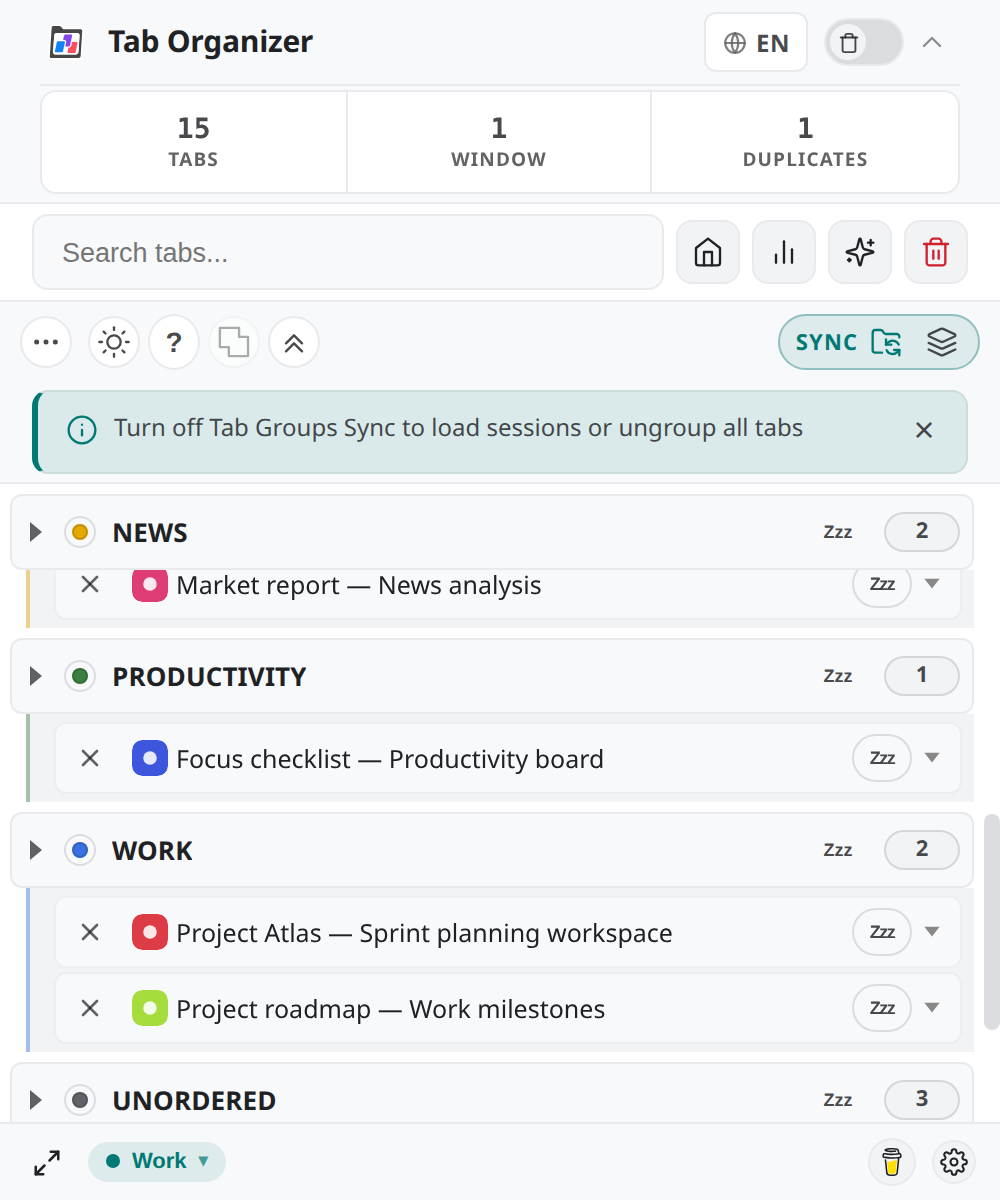
Browser Side Panel is opt-in
Chrome's Side Panel is available only after you choose it as the primary host. Tab Organizer does not switch an existing installation to the Side Panel without that selection.
Use the Side Panel when you want the interface to remain docked alongside the current page while you review or organize tabs. It shares the panel area with Chrome's other side-panel features.
Dedicated Window stays open
The Dedicated Window host opens Tab Organizer in its own small window. Only one such window exists at a time: triggering the extension again focuses the existing window instead of opening a second one. The window remembers its size and position between openings.
Use the Dedicated Window when you work with a second display or want the interface available independently of any browser window.
Change the primary host
- Open Tab Organizer.
- Open Settings.
- Find the primary-host choice.
- Select Popup, Browser Side Panel, or Dedicated Window.
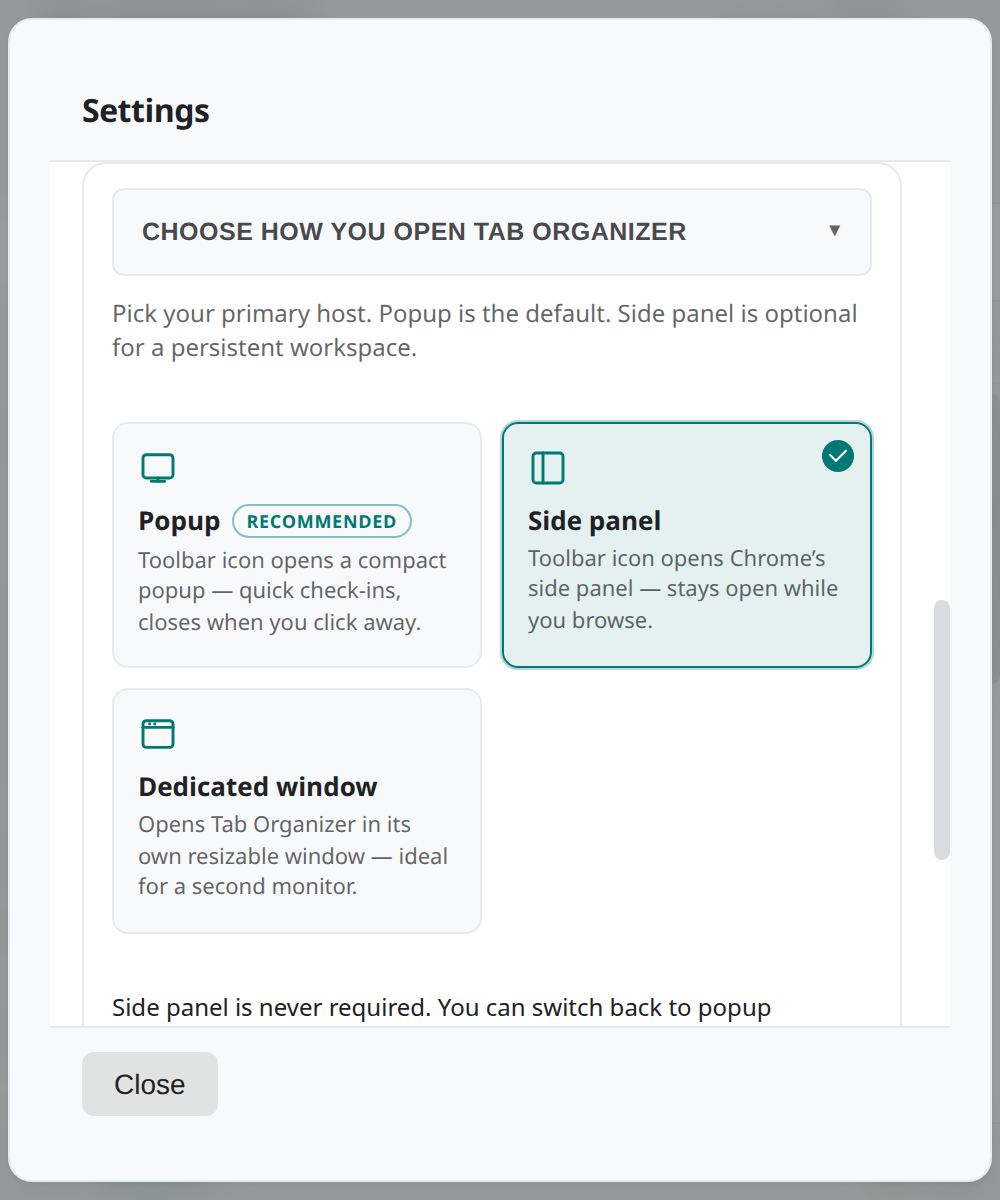
- Close Settings and select the extension action again to verify where Tab Organizer opens.
The selection is reversible. Choosing Popup again restores the default action behavior, and keyboard opening follows the selected host as well. If a chosen host is ever unavailable in your browser, Tab Organizer falls back to the popup and says so.