
Concepts
Tab Rules
Create, order, test, quick-add, import, and export rules that assign tabs to groups.
Switch to DeutschHow Tab Rules work
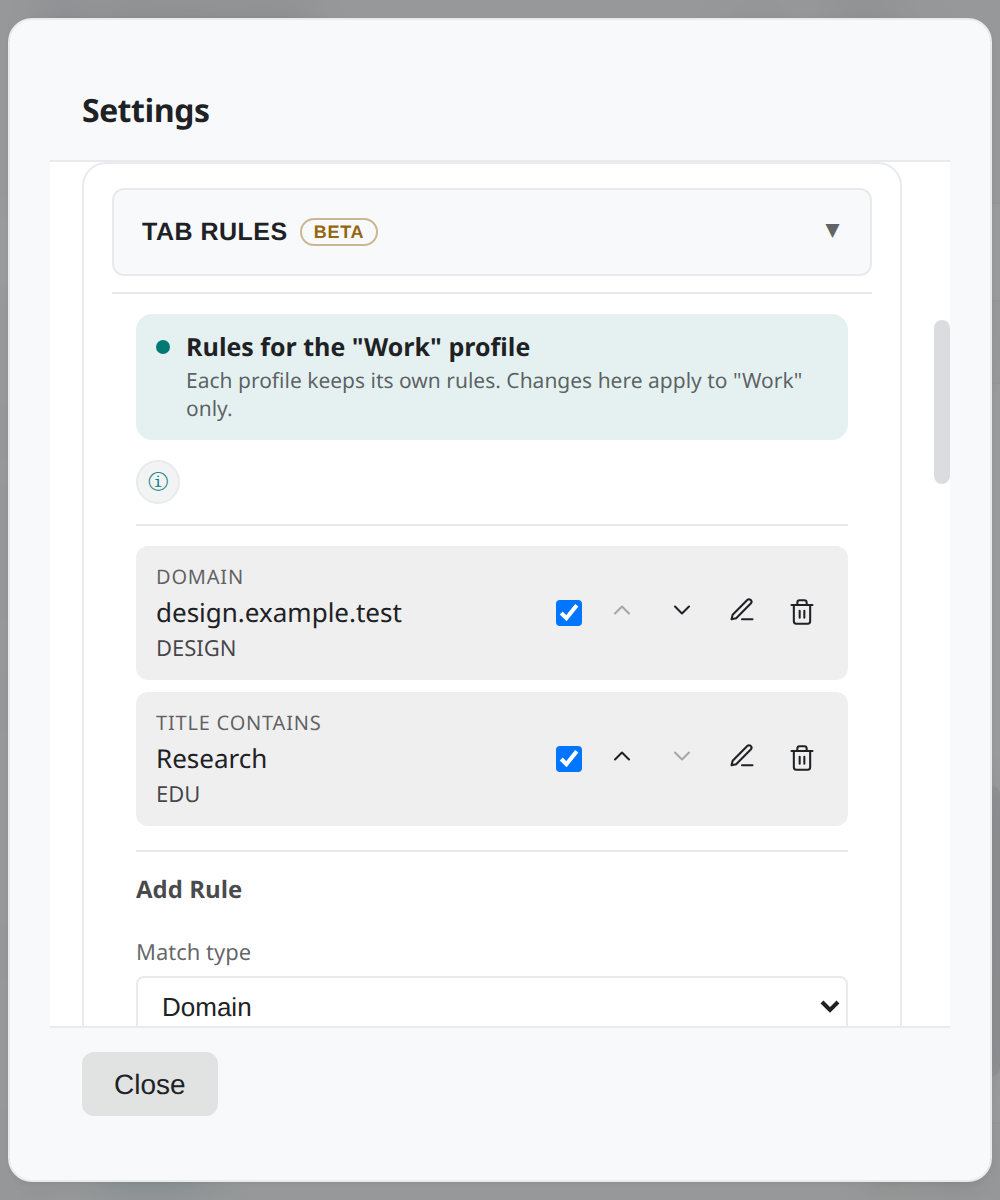
Tab Rules assign matching tabs to a target group before the remaining automatic grouping logic is applied. Rules belong to the active Context Profile.
Each rule contains a match type, pattern, target group, enabled state, and position. A disabled rule remains in the list but does not take part in matching.
Choose a rule type
| Type | What it checks |
|---|---|
| Domain | The tab's domain, including subdomains of the entered domain |
| URL | Whether the tab URL contains the entered text |
| Title | Whether the cleaned page title contains the entered text |
| Regex | A regular expression against the URL, pending URL, and title |
| Wildcard | A full wildcard pattern against URL and host forms; * matches any run and ? one character |
Choose the narrowest type that expresses the assignment. Regex and wildcard patterns are more flexible, so test them before relying on them across many tabs.
Order, enable, and maintain rules
Enabled rules are checked from top to bottom. The first matching rule supplies the target group, so order matters when patterns overlap.
Use the move controls to change priority. You can also disable a rule for later use, edit its pattern or target, and delete a rule you no longer need. After reordering or editing, test the affected patterns again.
Test before saving
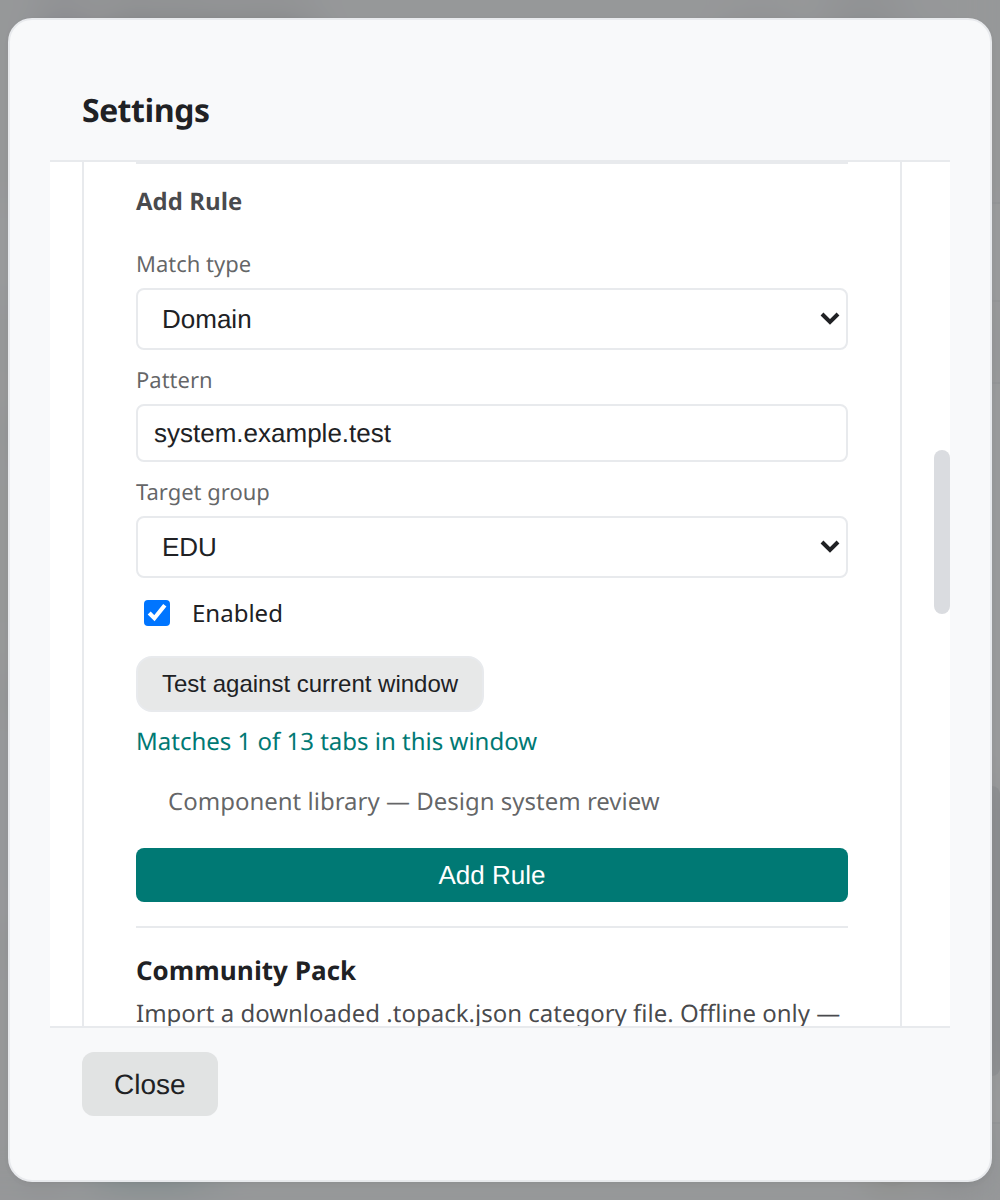
The rule form can test a draft against tabs in the active window and report the match count with a preview of matching rows. Regex rules also show whether the expression is valid and preview matching sample text.
A test is a dry run: it evaluates the draft without adding that rule to the ordered list. Review both intended matches and unexpected broad matches before saving.
Quick-add a site rule
In the standard Groups view, open a tab's contextual actions and choose Always group this site. Tab Organizer opens the Rules form with the site's domain and current target prefilled, then runs the live match preview.
Check the prefilled domain, target group, and preview. Saving creates the rule; closing the form without saving does not.
Export and import rule bundles
Rules can be exported as a JSON bundle and imported from a supported JSON bundle. Import validates the file before applying it.
When an imported rule conflicts with an existing one, resolve that item by keeping the current rule or taking the imported rule. Apply the import only after every listed conflict has a choice. The imported rules become part of the active profile's rule context, so confirm the active profile first.