
Guides
Restore a session
Replace current tabs with a saved single- or multi-window session while preserving a recovery path.
Switch to DeutschRestoring reconstructs tabs and windows from a saved session. It is a replacement operation, not an additive import into the current tab set.
Before you restore
Complete this checklist first:
- save work inside pages; a session does not preserve unsaved form or editor state;
- export the current browser layout if you may need to recover it;
- inspect the source and expected contents of the
.tabsessionfile; - decide whether to recreate saved groups or use Ignore Groups; and
- turn off Tab Groups Sync (BETA), because this version blocks session loading while sync is active.
Use files only from a source you trust. A session file is readable JSON and can contain URLs you would not want to disclose.
Saving first uses the Save session surface. That capture is not the restore confirmation.
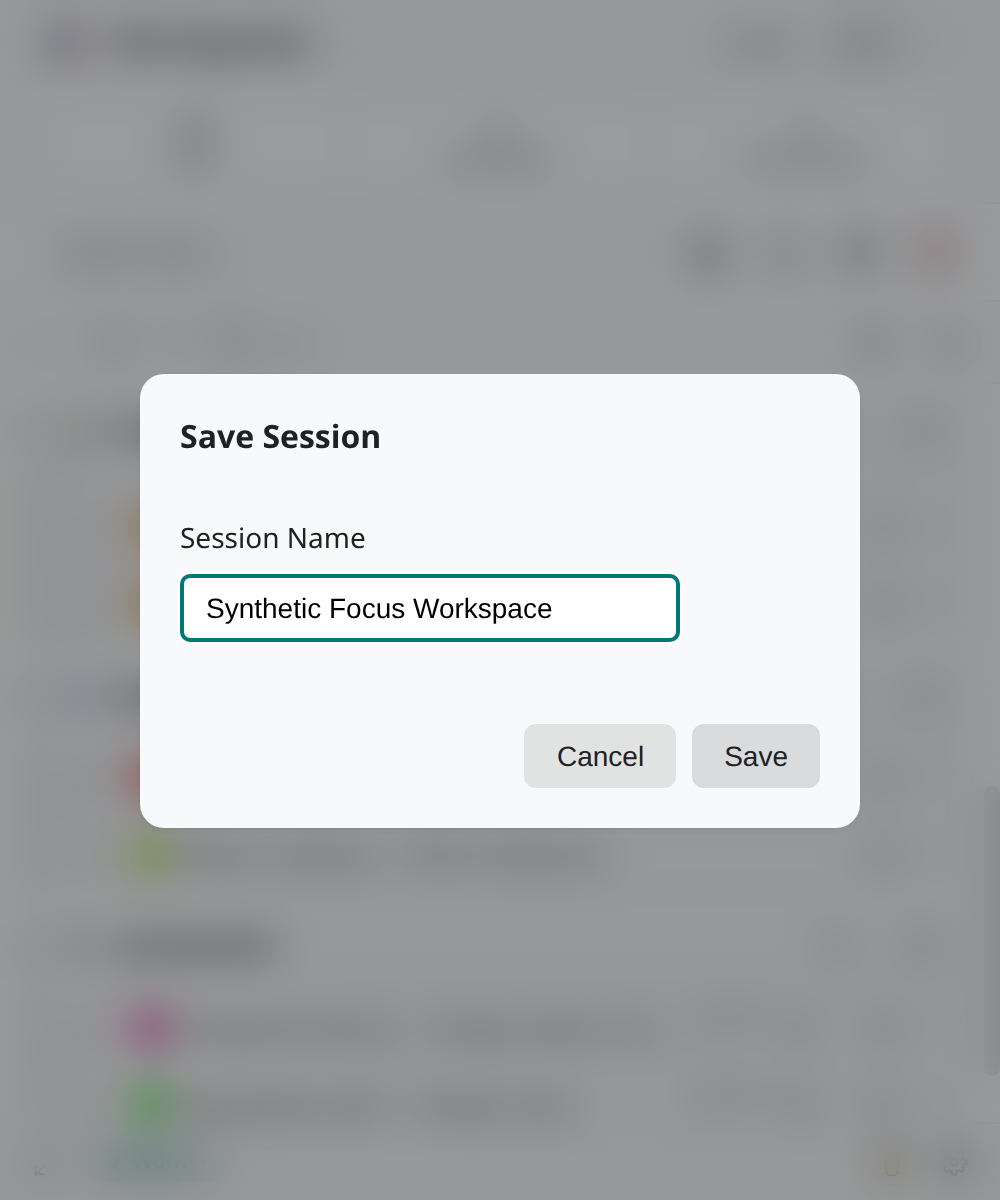
Restore a session
- Open Tab Organizer and verify that Tab Groups Sync (BETA) is off (no active
SYNCpill). - Select Load session.
- Choose Browse Files and select a
.tabsessionfile, drop one in the import area, or choose an entry from Recent Sessions. - Review the selected session and choose whether to Create Groups or Ignore Groups.
- Choose Single Window if you want all restored tabs placed together.
- In Load Session?, confirm only after reading that current tabs will close.
- Keep Chrome open while the extension creates and verifies the restored tabs.
If the extension reports that the file came from a newer version, update and recheck compatibility before trying again. This version reports older incompatible formats as requiring migration; do not edit a session's schema marker to bypass that check.
Restore multiple windows
Choose Multi Window when you want the session's recorded windows and display geometry reconstructed.
- Connect the displays you intend to use and confirm their arrangement in the operating system.
- In Load Session, select Multi Window.
- Choose whether saved native groups should be created.
- Confirm the replacement only after checking the session name and source.
- Inspect any window whose position differs from the recorded layout.
Display arrangements can change between save and restore. Recorded geometry is input to reconstruction, not a guarantee that every window will land at the same physical location.
Verify restored tabs
After the restore completes:
- Compare the visible tab and window totals with the expected session.
- Search for several known tabs, including one from each saved window.
- Check pinned and active tabs.
- If groups were enabled, inspect titles, colors, and membership.
- Re-enable native sync only after the restored assignments are correct and you accept its overwrite boundary.
If verification fails, leave sync off and avoid another restore until you have recorded the error shown by the extension. See Session troubleshooting.