
Get started
Install Tab Organizer
Install Tab Organizer from the Chrome Web Store and inspect your first organized tab set.
Switch to DeutschThis quickstart takes you from installation to your first review of automatically assigned tabs. Group Mirror Mode is on by default for new profiles; Tab Groups Sync (BETA) stays off until you explicitly enable it on this Chrome profile.
Requirements
You need:
- a current desktop installation of Chrome;
- permission to install extensions in that Chrome profile; and
- at least two open tabs if you want to see grouping and the badge count immediately.
Managed profiles can restrict extension installation or keyboard commands. Ask your browser administrator if the store blocks the install button.
Install the extension
- Open Tab Organizer in the Chrome Web Store.
- Select Add to Chrome.
- Review Chrome's permission prompt, then confirm the installation.
- Optional: open Chrome's Extensions menu and pin Tab Organizer so its icon remains visible.
Installation gives the extension access to the browser APIs needed to read and manage tabs, windows, groups, display layout, and stored settings. See Permissions before installing if you need a task-by-task explanation.
Open the popup
Select the Tab Organizer icon in Chrome's toolbar. You can also use Alt+O; if another command uses that combination, open the popup from the toolbar and resolve the shortcut conflict later.
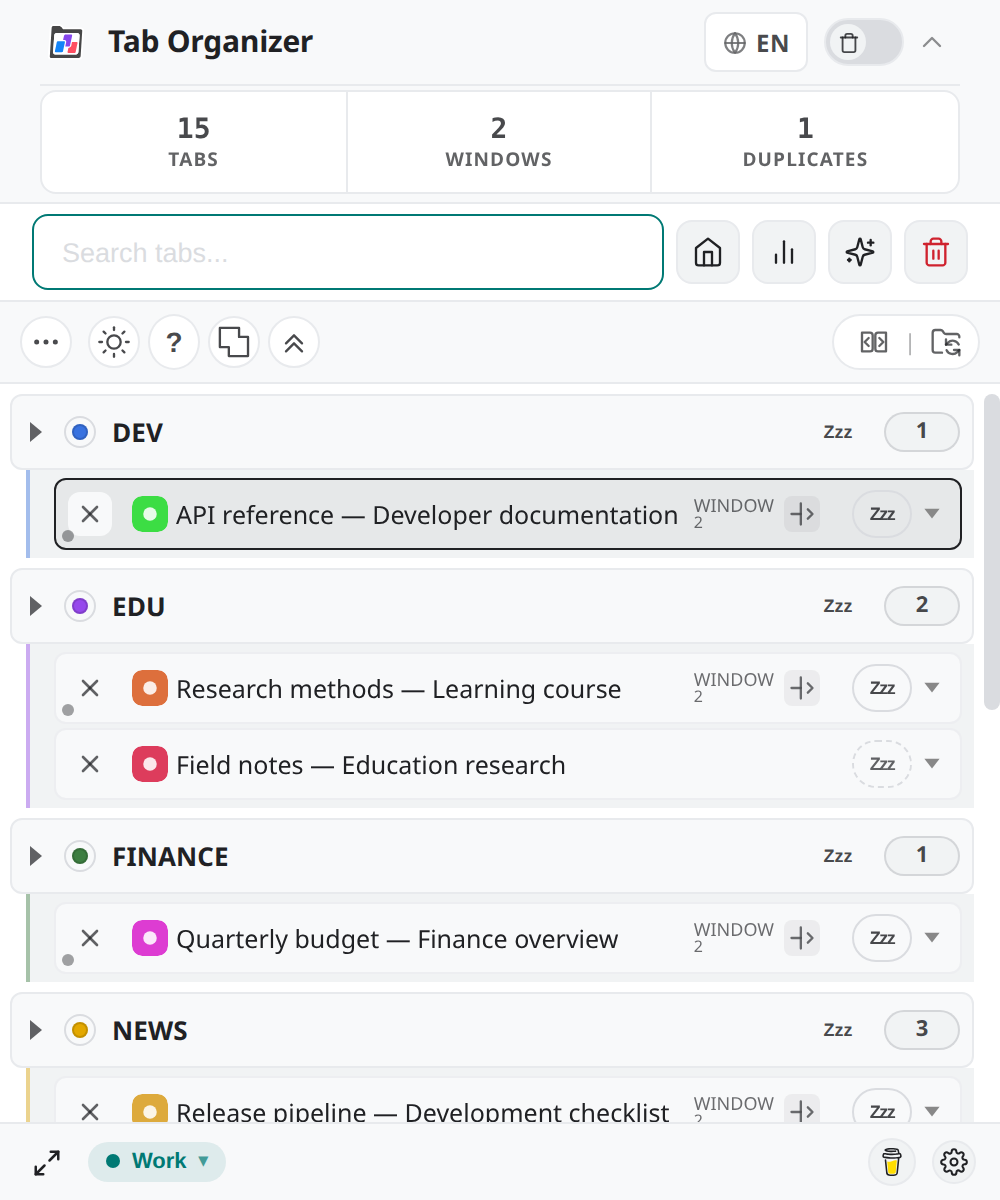
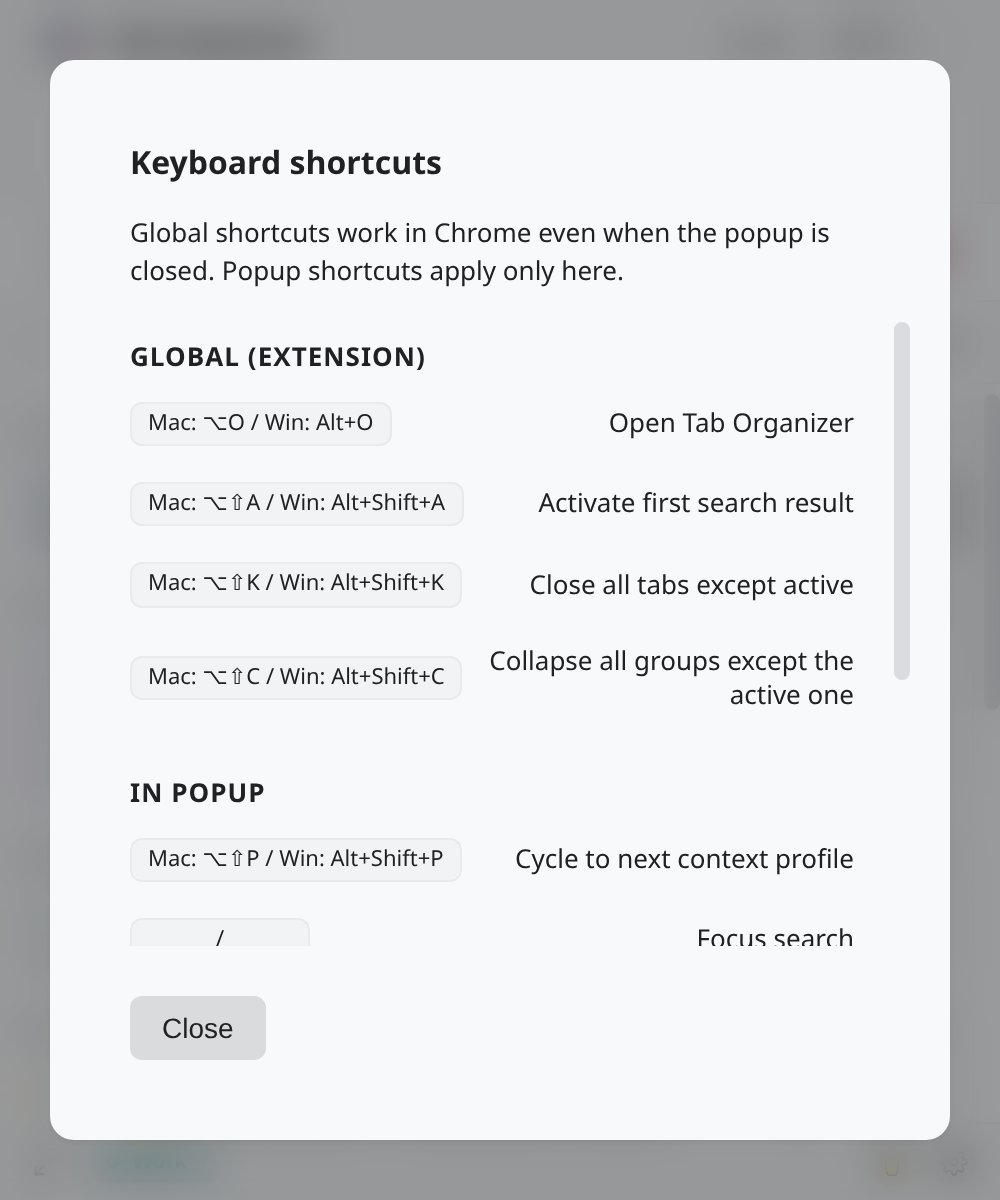
The popup is the default host. After the first open, you can choose Chrome's Side Panel or a dedicated window instead; see Choose how Tab Organizer opens.
The Groups view shows unpinned tabs assigned by domain and page-title rules. Review unexpected assignments before enabling sync. Pinned tabs are excluded from the central automatic grouping and reorder flow.
Next steps
- Follow the get-started tutorial to pin the extension and compare the three opening modes with live previews.
- Build your first ordered assignment in Tab Rules.
- Learn how automatic grouping and Tab Groups Sync (BETA) differ from Group Mirror Mode.
- Free memory with Sleep and wake tabs.
- Keep separate rule sets with Context Profiles.
- Find any open tab with search and keyboard navigation.
Before enabling sync, read the overwrite boundary: existing native browser tab groups can be replaced by the extension's group structure.