
Concepts
Context Profiles
Keep rule contexts separate, switch and manage profiles, and cycle them with the Mac-first shortcut.
Switch to DeutschWhat a profile changes
A Context Profile is a named rule context. It lets one browser installation keep separate Tab Rule sets for different kinds of work without combining every pattern into one priority list.
The active profile chip appears in the Tab Organizer footer. The active profile determines which profile-scoped rules you view and edit.
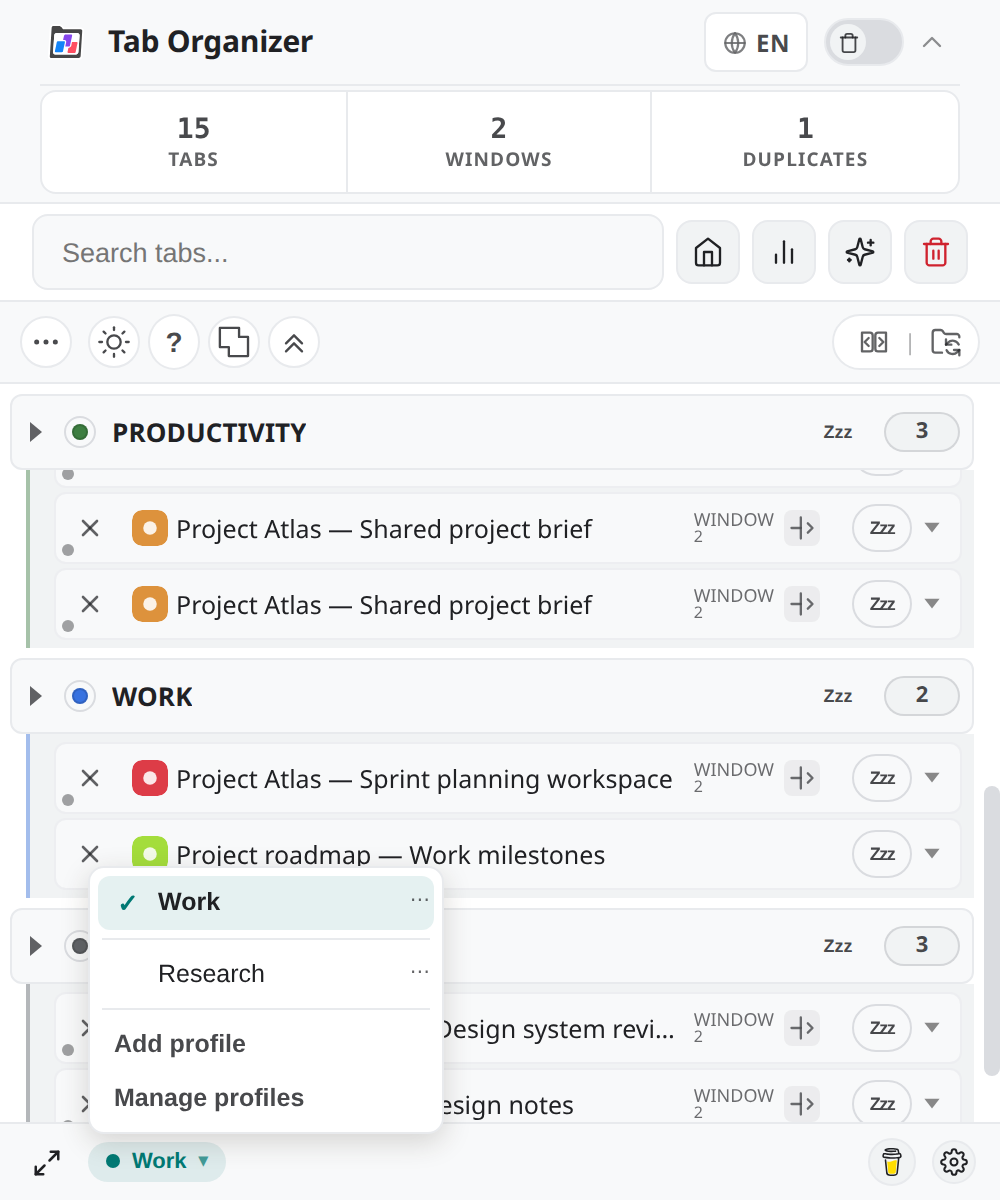
Switch profiles
- Select the active profile chip.
- Review the profiles in the menu.
- Select the profile you want to activate.
- Verify the active profile name and the resulting tab assignments.
If a Rules form has unsaved changes, Tab Organizer asks before switching. Cancel to preserve the current editing context, or continue only if leaving those draft changes is acceptable.
Add, rename, and delete profiles
Use Add profile in the profile menu or the add control next to the active profile. Give each profile a name that identifies its rule context.
Open a profile's action menu to rename it. Delete is available when another profile can remain; deletion asks for confirmation. If the deleted profile was active, Tab Organizer switches to a remaining profile and refreshes the view.
Rules belong to the active profile
Open Manage profiles to reach the Rules area for the active profile. The profile context banner identifies which profile owns the displayed rules.
Before creating, editing, reordering, importing, or exporting rules, confirm the active profile. See Tab Rules for match types, priority, testing, quick-add, and bundle conflicts.
Cycle to the next profile
Outside a typing field, use:
- Mac: ⌥⇧P
- Windows/Linux: Alt + Shift + P
The shortcut activates the next profile and wraps to the first profile after the last. It has no switch to make when fewer than two profiles exist. The Mac notation is listed first to match the extension's shortcut reference.