
Guides
Sleep and wake tabs
Free memory by putting eligible tabs to sleep with the Zzz control, then reload them when you need them again.
Switch to DeutschSleep puts eligible background tabs into a discarded state so Chrome can free memory. Wake reloads a sleeping tab when you open it again or run an explicit wake action. Sleep is manual by design — Tab Organizer does not suspend tabs on a timer.
When to use Sleep
Use Sleep when you want to keep tabs open but reduce memory use:
- research tabs you may return to later;
- large dashboards or documents that reload cleanly; and
- groups you want to preserve without closing.
Sleep does not replace closing tabs you no longer need. For controlled cleanup, use Tab Close Recommendations or bulk close.
Sleep or wake one tab
Each tab row exposes a Zzz lifecycle control when the tab is eligible.
- A grey outline Zzz means the tab is awake. Select it to put the tab to sleep.
- A filled accent Zzz (green/teal in the default themes) means the tab is already sleeping. Select it to wake the tab.
- Sleeping rows also use a dashed outline and a greyscale favicon. The active tab cannot sleep; its Zzz stays unavailable.
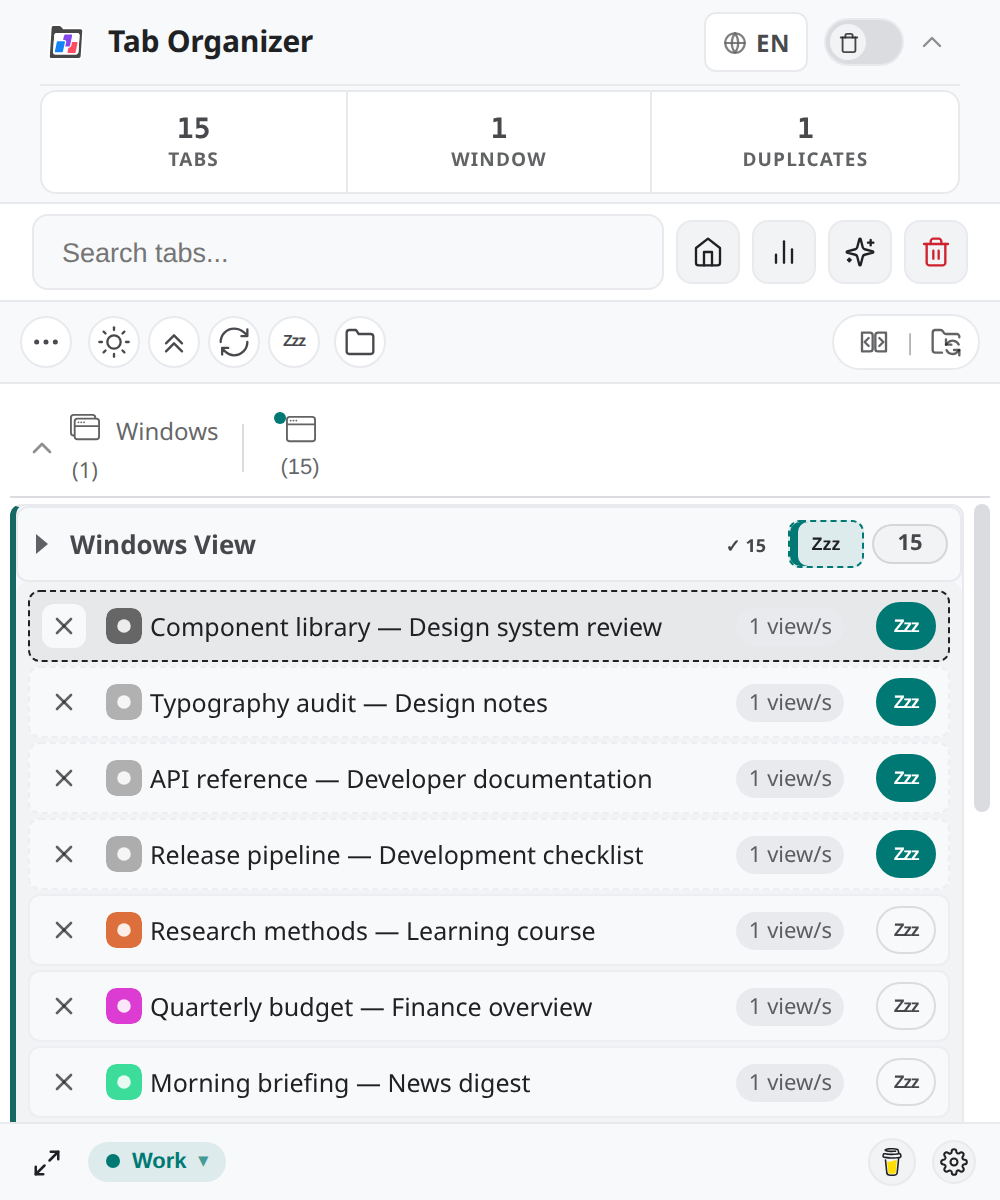
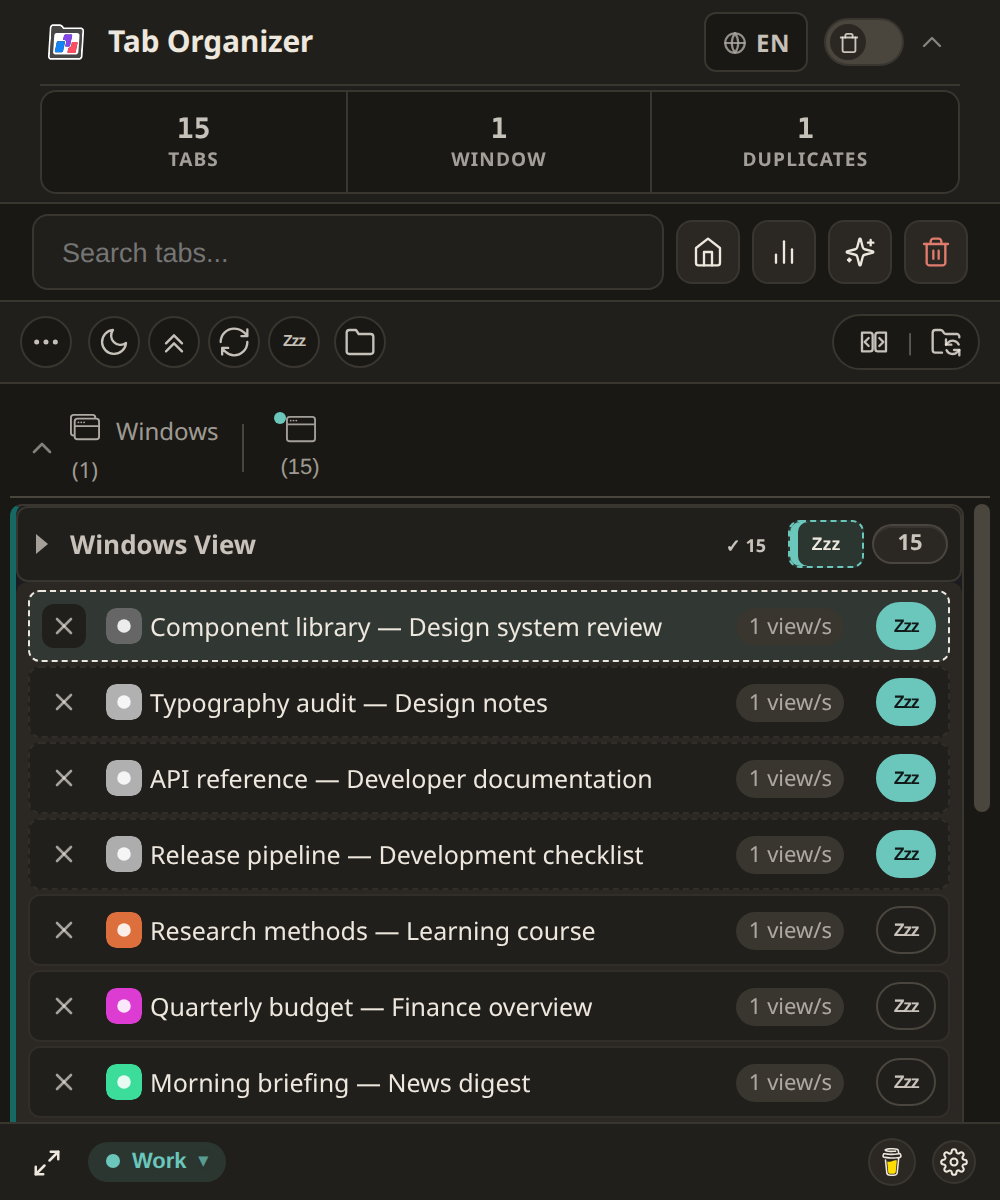
- Locate the tab in Groups, Windows View, or another list view.
- Select Put tab to sleep on an awake, eligible tab — or Wake tab on a sleeping tab.
- Wait for the pending state to settle. A sleeping tab shows that memory was freed and reloads when opened.
The active tab always stays awake, including the active tab in any window. Chrome's own tab discarding can also sleep tabs independently of Tab Organizer.
Sleep or wake a selection
Selection mode adds bulk lifecycle actions alongside close controls.
- Enter selection mode for the view you are working in.
- Select the tabs to sleep or wake.
- Choose Sleep N or Wake N from the selection bar.
- Review the result summary — skipped tabs remain awake for eligibility reasons.
See Close tabs in bulk for scope and review habits that also apply to lifecycle selections.
Sleep or wake a group
Group headers expose a lifecycle action for their member tabs.
- When every eligible tab in the group is awake, the action puts awake tabs to sleep.
- When every represented tab is already sleeping, the action wakes them.
- When the group is mixed, a menu offers Put N awake tabs to sleep and Wake N sleeping tabs separately.
Pinned tabs and the active tab are skipped. Partial results report how many tabs slept, were already sleeping, were skipped, or failed.
Sleep or wake all eligible tabs
The toolbar global lifecycle control applies to all extension-visible tabs in normal windows. Pin it to a quick-access slot from Customize the toolbar, or run it from More tools.
- Put all eligible tabs to sleep when awake targets remain.
- Wake all sleeping tabs when no sleep targets remain.
Use this after a long session when you want memory back without closing your tab set. The active tab and ineligible tabs stay awake.
Eligibility boundaries
| Tab state | Sleep | Wake |
|---|---|---|
| Active (any window) | Not eligible — stays awake | Not applicable |
| Already sleeping | Not applicable | Eligible — reloads |
| Awake background tab | Eligible | Not applicable |
| Pinned tab | Skipped — stays awake | Wakes only if already sleeping |
| Restricted or internal pages | May be skipped if Chrome refuses discard | Wake when sleeping |
Batch actions count only the eligible subset and report skips. No eligible tabs to sleep or wake means every visible tab is active, pinned, already in the target state, or restricted.