Concepts
Group Mirror Mode and native groups
Work directly with native Chrome groups, including editing, selection, collapse behavior, and the Tab Groups Sync boundary.
What Group Mirror Mode mirrors
Group Mirror Mode reads native Chrome Tab Groups and projects them into Tab Organizer App. The native groups are the source of the displayed structure. Changes made through Mirror therefore update Chrome's group state rather than creating a second automatic assignment scheme.
On a fresh Chrome profile, Group Mirror Mode is on by default. Tab Groups Sync (BETA) remains opt-in and requires an explicit activation step.
Group Mirror Mode is different from Tab Groups Sync (BETA):
- Tab Groups Sync (BETA) starts with Tab Organizer App's assignments and applies them to native groups on this Chrome profile (device-local parity, not cloud sync).
- Group Mirror Mode starts with existing native groups and lets you work with those groups in Tab Organizer App.
- With both controls off, the normal Groups view uses automatic categories, custom assignments, and Tab Rules without applying a live native-group mode.
First start without Chrome groups
While there is no Chrome tab group yet, a note sits above the list: this view mirrors your Chrome tab groups, and you don't have any yet. Its button Show by category switches to the category view in one click and without a confirmation. No Chrome groups are created or changed. Group Mirror Mode in the toolbar brings the Mirror view back.
The note goes away as soon as a Chrome group exists. It stays away for good once you close it, use its button, or turn Group Mirror Mode on yourself. It looks the same in the popup, the side panel, and the dedicated window.
Toolbar pills and controls
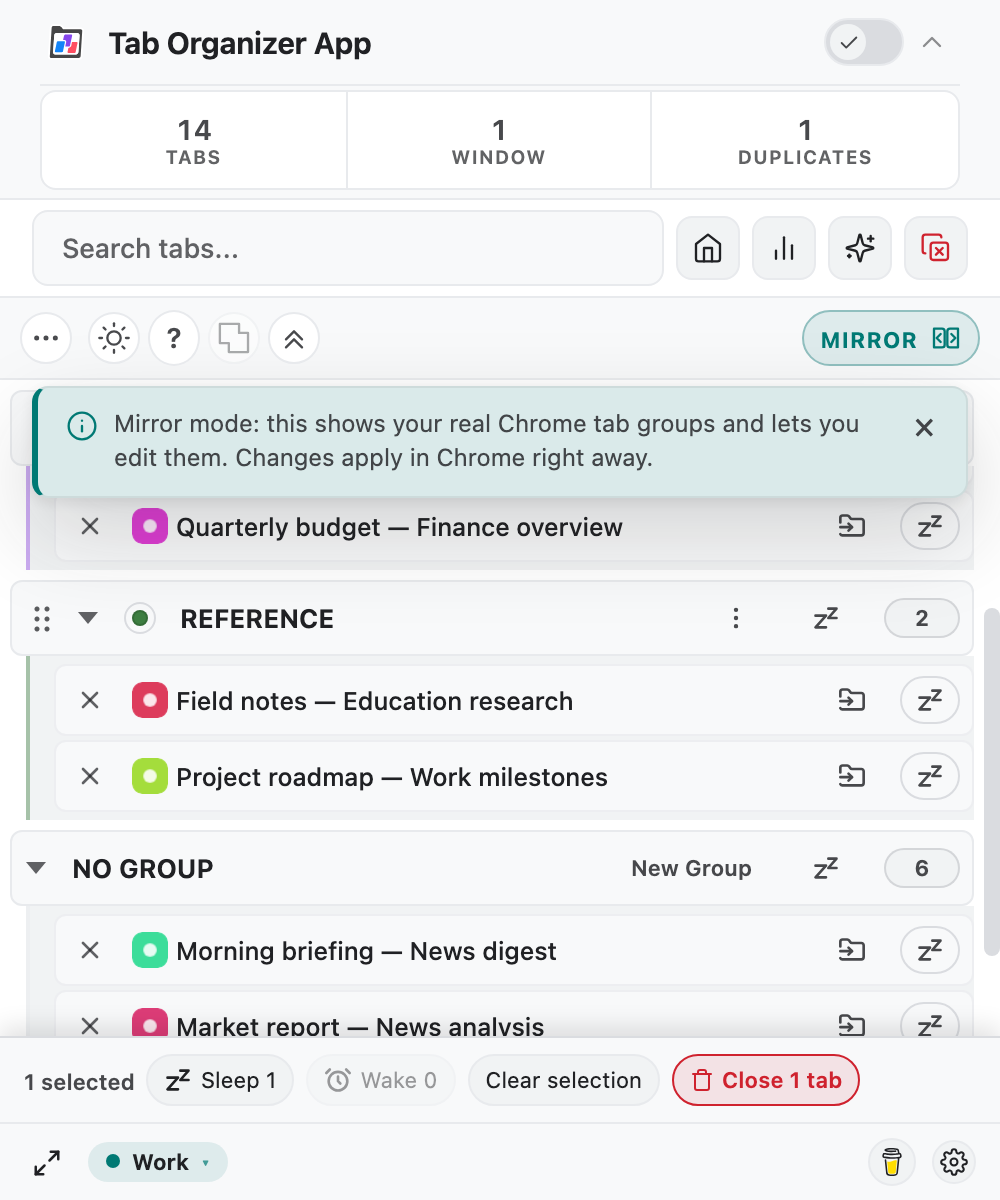
Mirror and Sync share one toolbar region. When a mode is active, a status pill shows MIRROR or SYNC. The other control stays hidden until you turn the active mode off.
While Group Mirror Mode is active, a hint banner may appear: Mirror mode: this shows your real Chrome tab groups and lets you edit them. Changes apply in Chrome right away. Dismiss the banner if you already understand the boundary; the control behavior does not change.
Enable or turn off Group Mirror Mode
- Open the popup toolbar and locate the Mirror and Sync controls.
- If Tab Groups Sync (BETA) is active, turn it off first — the modes are mutually exclusive.
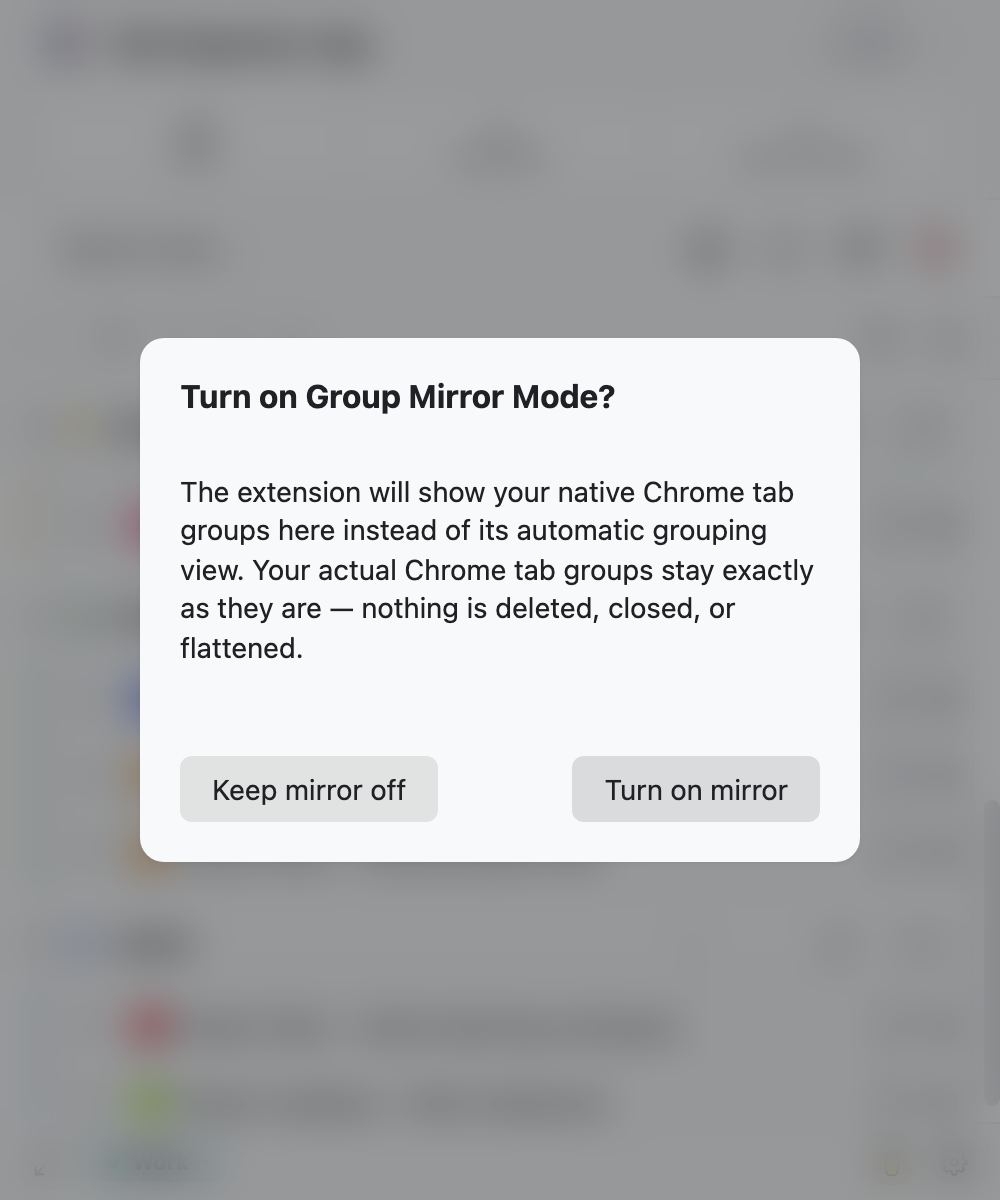
- Select Group Mirror Mode and confirm Turn on Group Mirror Mode?.
- When active, the
MIRRORpill confirms the mode. - Compare the groups shown in Tab Organizer App with Chrome's tab strip before editing.
Turning Group Mirror Mode off requires confirmation as well (Turn off Group Mirror Mode?). The only exception is the Show by category button of the first-start note. The extension returns to its normal group presentation; Sync is not enabled automatically.
Edit native groups
In Group Mirror Mode you can create a native group and rename, recolor, reorder, collapse, or ungroup existing native group aggregates. Moving a tab or a selected set to another Mirror group changes its native group membership.
Review the target window and group before a move. Native groups are window-scoped, and a group action can affect all represented tabs in that aggregate.
Select multiple Mirror tabs
Mirror supports single, additive, range, and keyboard selection. A context action keeps the relevant selection so that an operation can target one tab or the selected set.
Clear the selection before starting an unrelated action. Search and Escape behavior can also affect the active Mirror selection, so verify the highlighted rows before applying a group change.
Choose collapse propagation
The Mirror-only Collapse in browser too preference determines whether collapsing a Mirror aggregate also collapses the native Chrome group. It is on by default. Turn it off and only the group in the list collapses; the Chrome group stays as it is.
The preference appears only where Mirror controls are relevant. If it is off, collapsing the group in Tab Organizer App changes the extension presentation without promising the same collapsed state in Chrome's tab strip.
Group Mirror Mode and Tab Groups Sync cannot run together
Tab Groups Sync (BETA) is off until you explicitly enable it. While Sync is active, the Group Mirror Mode control is unavailable. While Group Mirror Mode is active, the Sync control is unavailable.
Turn off the current mode before enabling the other. Enabling Sync has a separate overwrite boundary because it applies Tab Organizer App's assignments to native groups. Review the Sync overwrite warning before making that change.