Concepts
Views and what they show
Switch between Groups, Windows View, Statistics, Recommendations, and Duplicates using quick stats and toolbar controls.
Each view examines the same current browser state from a different angle. Switching views does not create another copy of your tabs.
Navigate with quick stats
This version replaces the legacy footer view toggle with quick stat tiles at the top of the popup:
| Tile | Opens |
|---|---|
| TABS | Groups — category and custom group assignments |
| WINDOWS | Windows View — tabs grouped by browser window |
| DUPLICATES | Duplicates — repeated URL and domain candidates |
Statistics and Tab Close Recommendations remain on the toolbar. Use the stats icon for aggregate counts and the recommendations icon for rarely visited cleanup suggestions.
The Home control returns to your remembered primary view (Groups or Windows View).
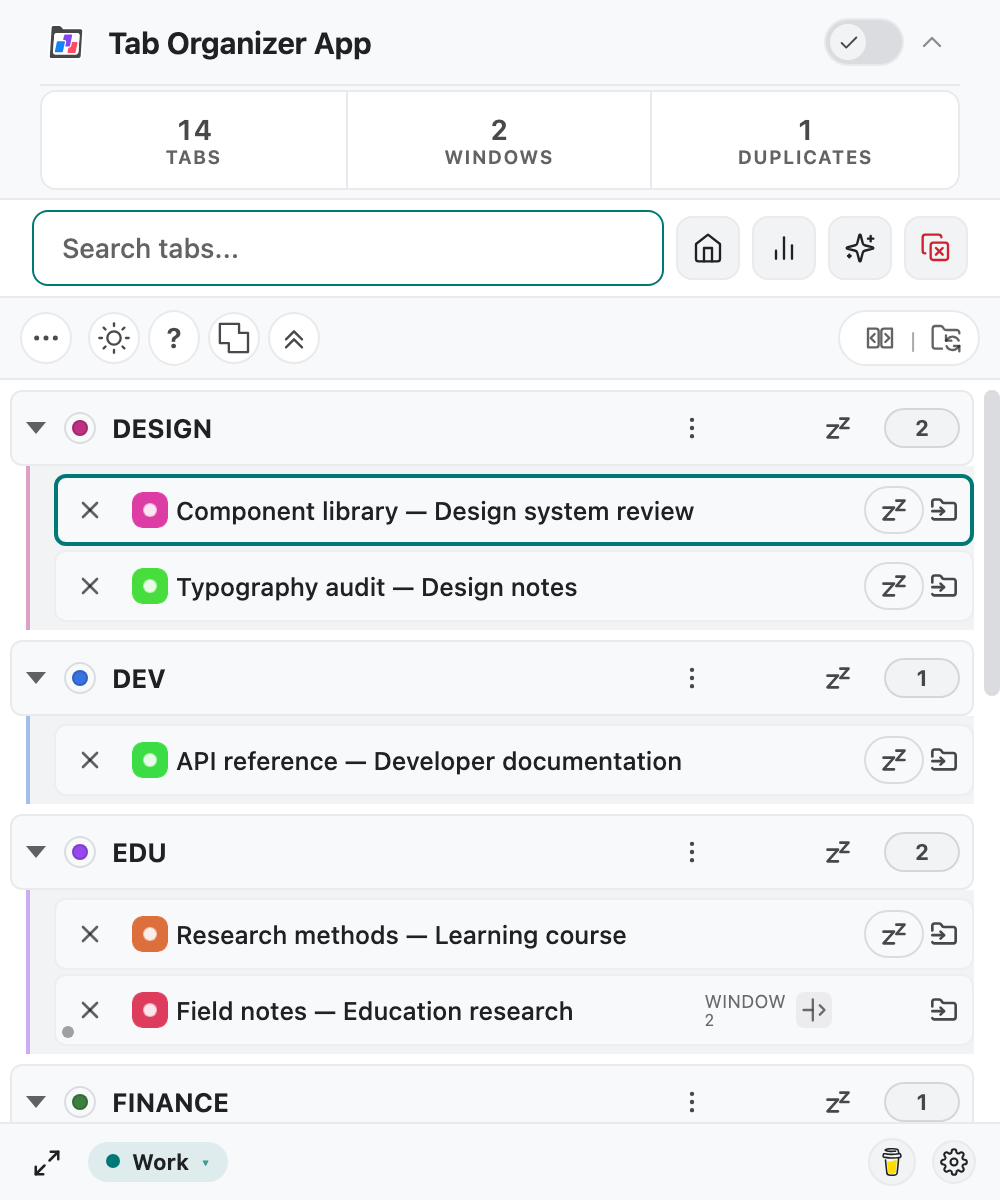
Groups view
Use Groups to organize and act on tabs:
- expand or collapse a category;
- activate or close an individual tab;
- assign a tab to another group;
- filter the visible groups;
- identify tabs that are in another window; and
- move an individual tab into the current window.
Pinned tabs have their own Pinned section at the top of the list, as in Chrome's tab strip. You can activate, close, or put a pinned tab to sleep from its row, but not assign it to a group. In Group Mirror Mode, pinned tabs appear first under No group.
This is the best starting point for reviewing automatic assignments before you enable Tab Groups Sync (BETA).
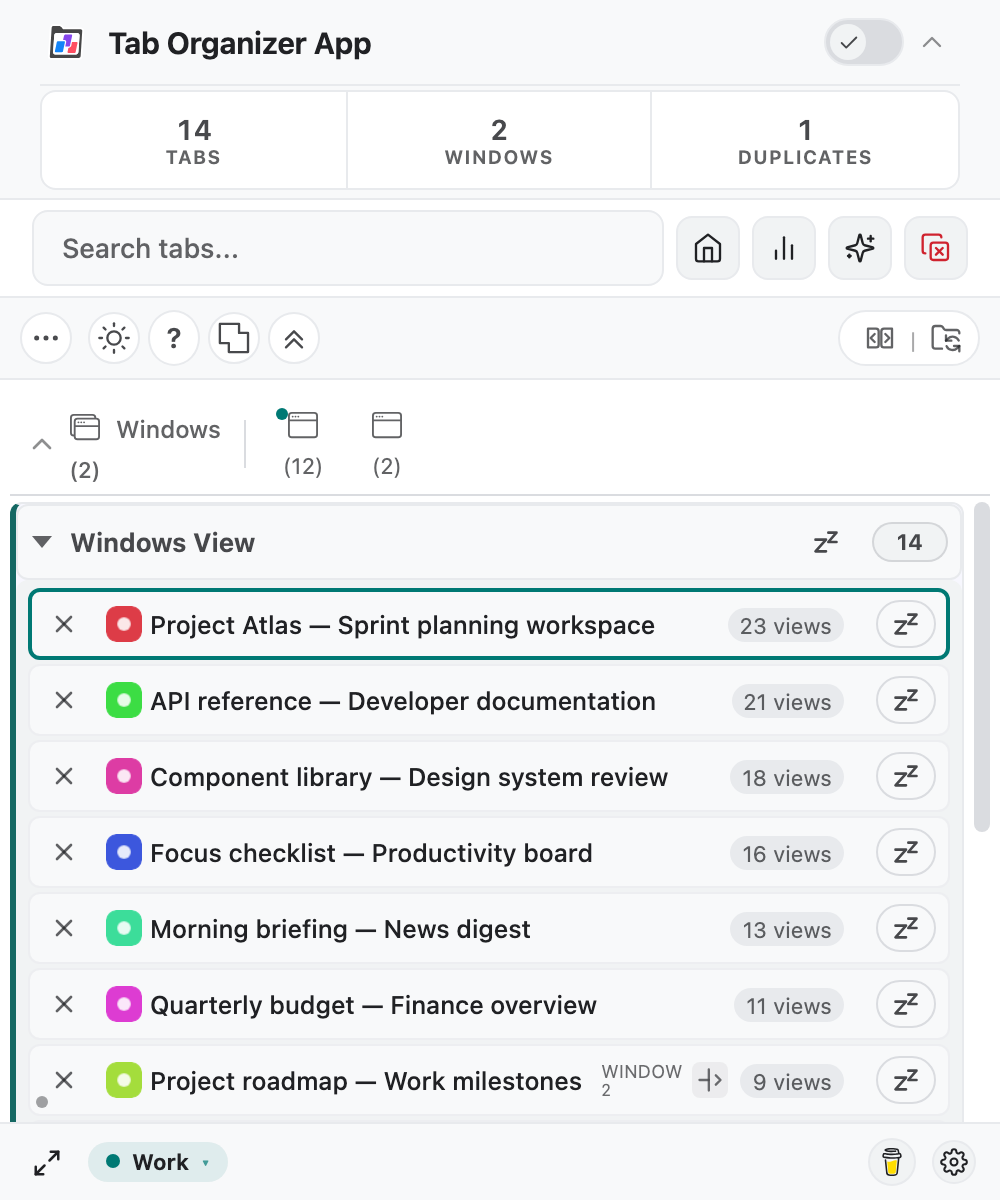
Windows View
Use Windows View to see tabs grouped by browser window instead of category. It shows a view count, the last recorded access, and a relative time where that history is available.
Open it from the WINDOWS quick stat. Window sub-filters help when you work across multiple Chrome windows.
The values come from access history maintained by the extension in local browser storage. Not visited or Last access unknown means the extension does not have a usable record; it does not prove that the page has never been visited outside this recorded history.
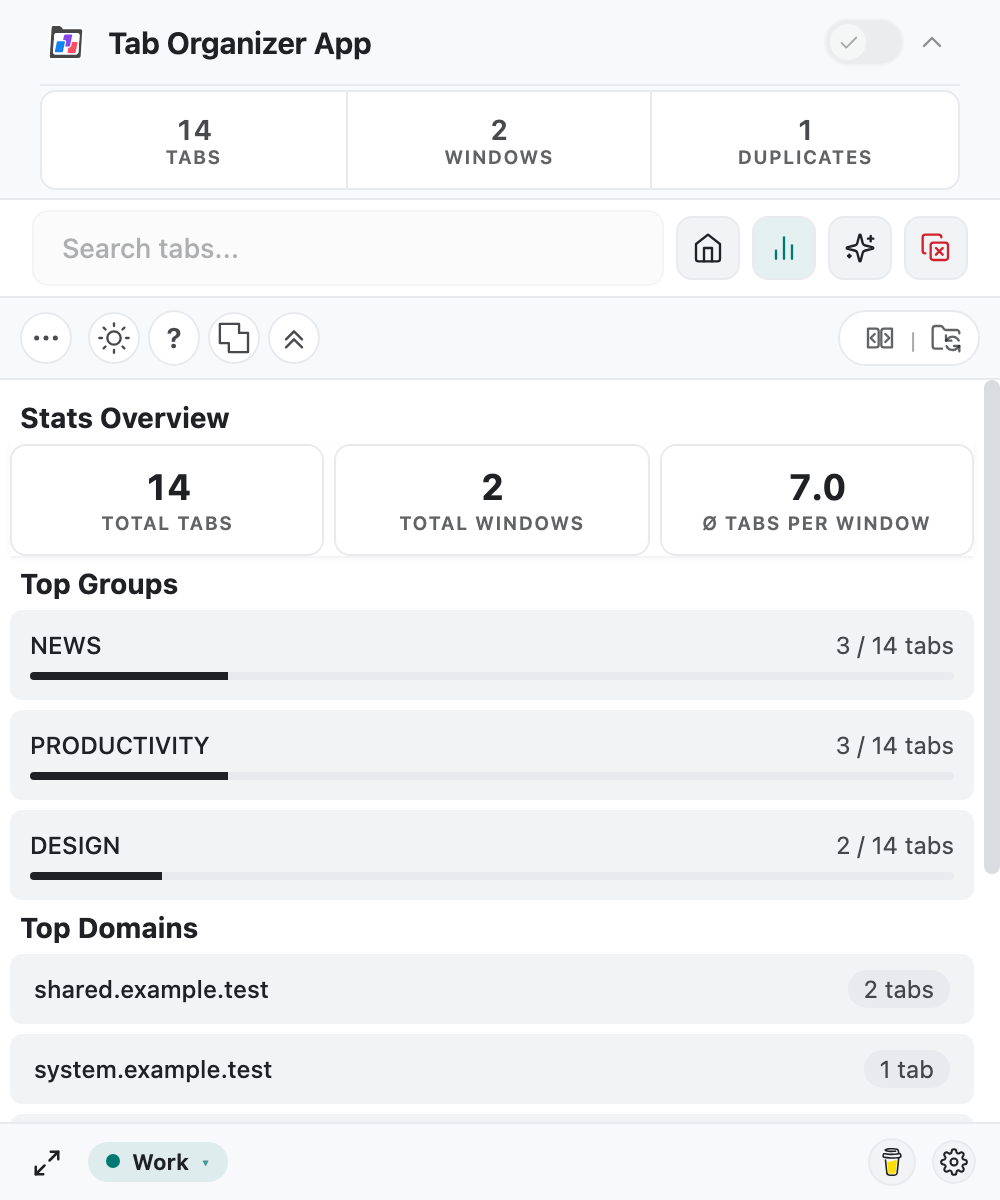
Statistics view
Open Statistics for an aggregate snapshot:
| Section | What it reports |
|---|---|
| Overview | Total tabs, total windows, and average tabs per window |
| Top Groups | Groups with the most represented tabs |
| Top Domains | Domains with the most represented tabs |
| Most Viewed Tabs | Tabs with the highest locally recorded view counts |
| Window Overview | How the current tabs are distributed across windows |
These are tab-management statistics, not CPU, memory, or browser-performance measurements. Tabs in incognito windows are not included in the view counts.
The search field is disabled in Statistics. A query you already typed is kept and applies again as soon as you switch to another view.
Recommendations view
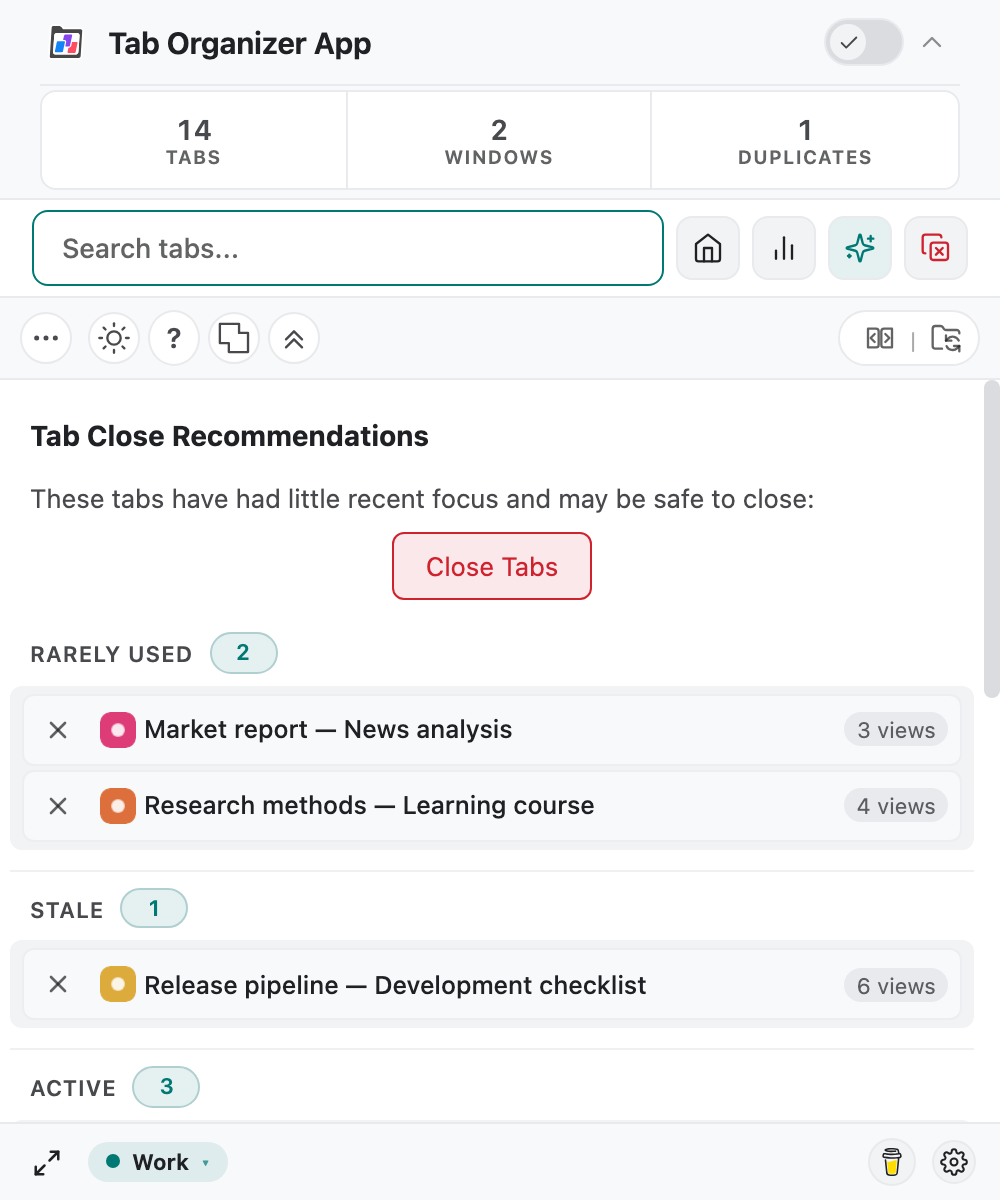
Tab Close Recommendations lists tabs that appear rarely visited according to locally maintained view counts and time since last access. The recommendation path excludes pinned tabs. Recommendations are suggestions only: you initiate any close action and confirm it.
Use Rarely visited tab recommendations for the controlled cleanup flow.
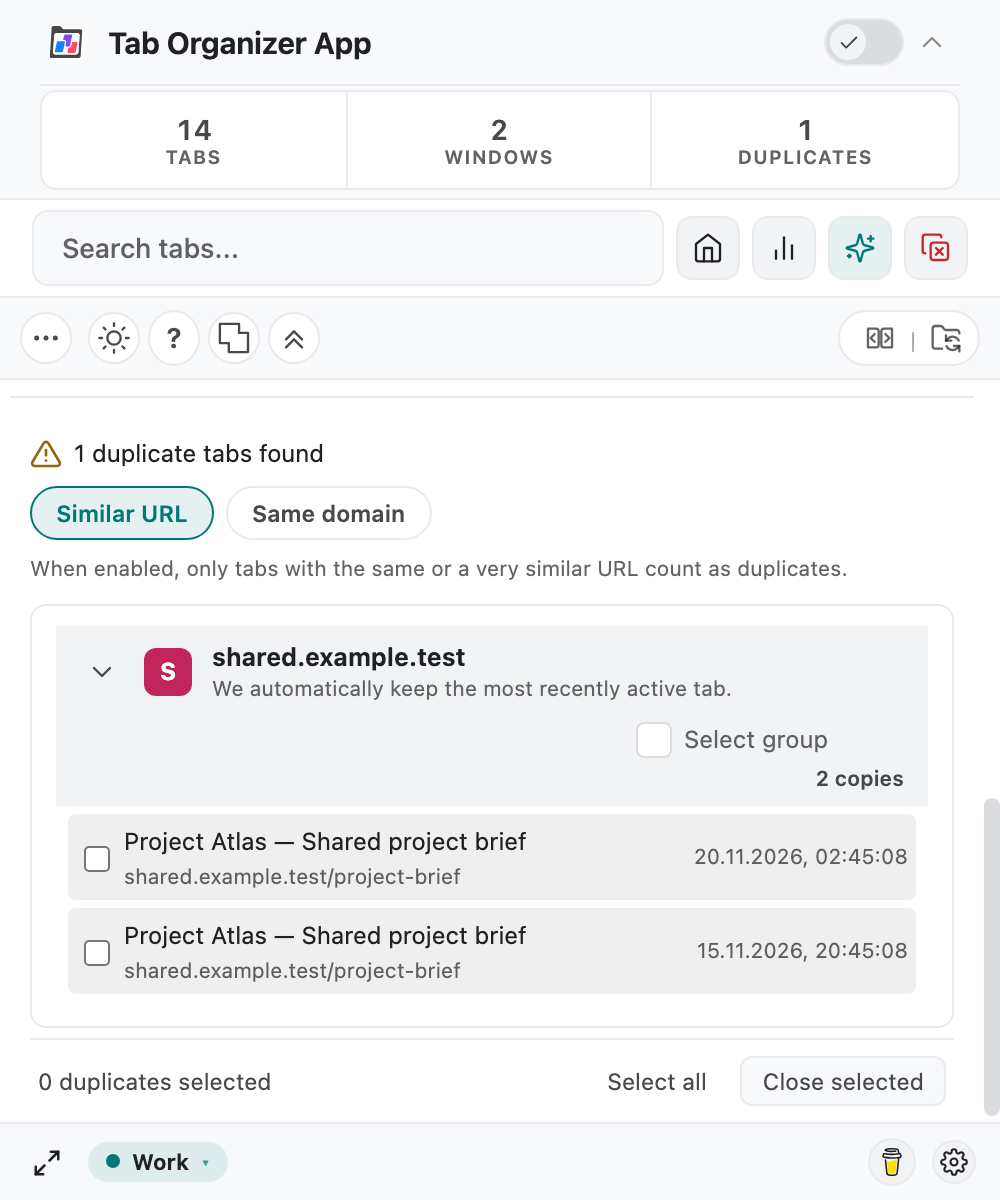
Duplicates view
Select the DUPLICATES quick stat to review repeated tab candidates grouped by URL or domain. The view marks the tab it keeps with a Keep badge and provides individual, group, and all-groups selection controls.
Nothing closes merely because you open this view. Tabs close only after you select candidates, choose Close selected, and confirm. Follow Duplicate cleanup for the full procedure.