Guides
Customize the toolbar
Use the six-slot quick-access row, the More tools panel, and drag-and-drop to pin the actions you need.
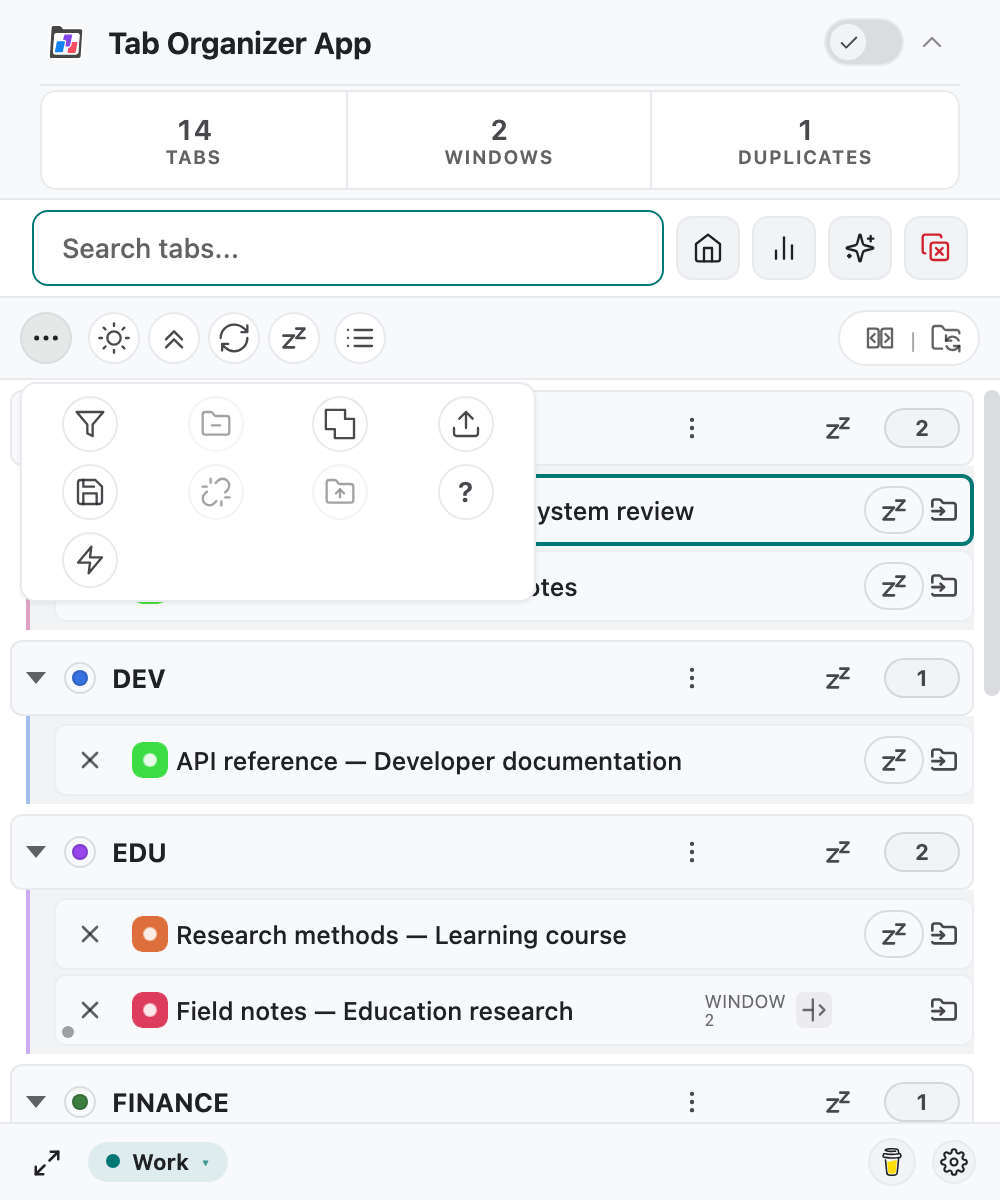
The sync toolbar sits above the grouped-tab list. It has three parts that stay separate on purpose:
- a quick-access row with six pin slots;
- More tools (
…), which opens the overflow panel of remaining actions; - the Mirror / Sync status region on the right, which is not part of the pin catalog.
Six-slot quick access
The pinned row is a fixed grid of six slots. Those six places are the only quick-access positions you can fill.
- Empty slots stay empty until you pin an action. They render as open drop targets.
- Layout is stored in this Chrome profile's extension storage (
toolbarLayout). Changing it once stops the fresh-install seed from overwriting it. - The same row appears in the popup, Side Panel, and dedicated window.
A fresh profile pins four actions: Switch light/dark mode, Keyboard shortcuts (?), Merge all windows into one, and Collapse all groups. The other two slots start empty.
More tools panel
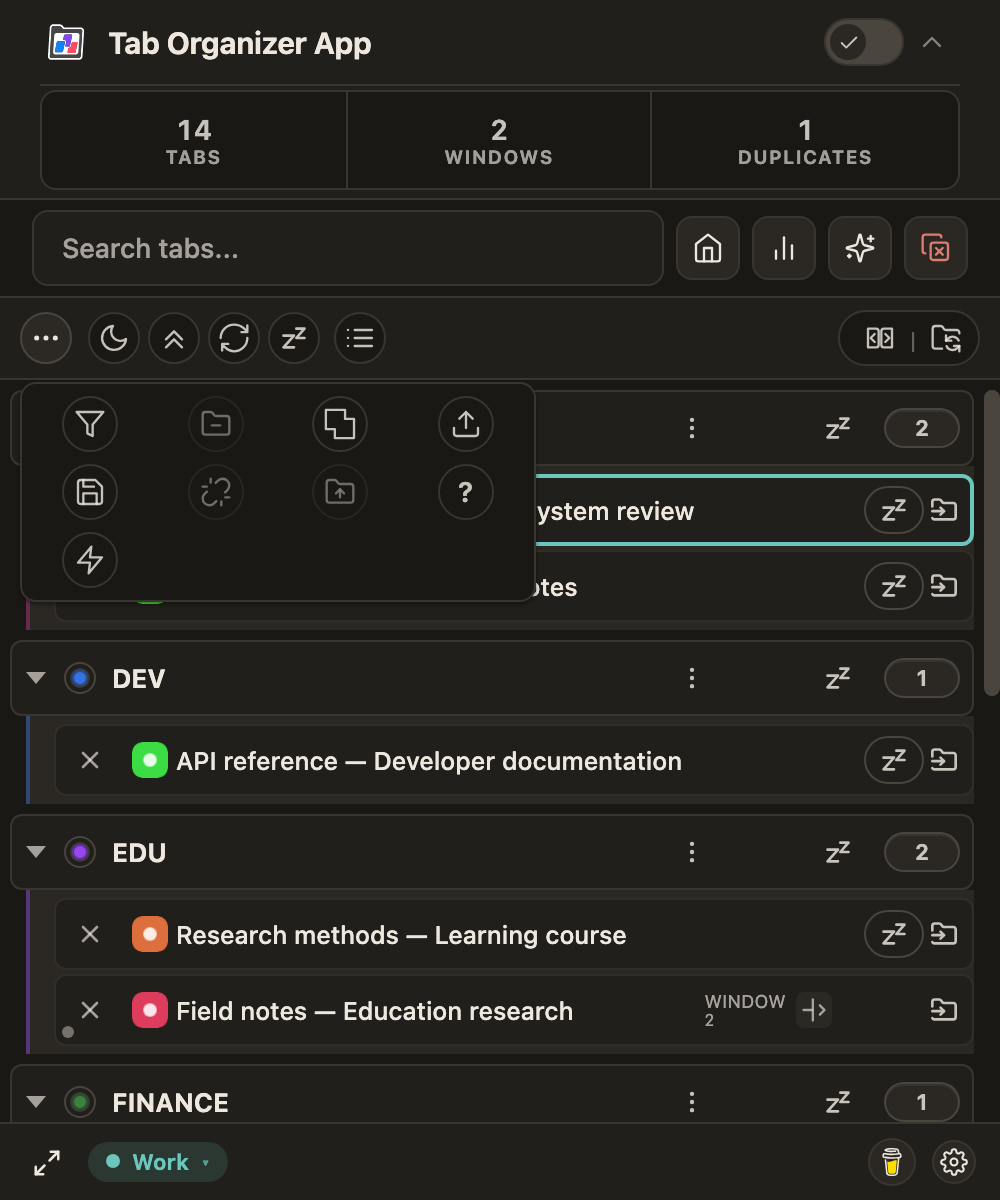
Select More tools to open the overflow panel. It lists every catalog action that is not currently pinned. Close it with the same control, Escape, or by clicking outside the panel.
Actions in the panel are the same controls as the pinned row — they are moved, not copied. Pinning an action removes it from the panel; removing it from the toolbar returns it to the panel.
Drag, pin, and reorder
You can rearrange the catalog with drag-and-drop or with the pin commands.
- Open More tools.
- Drag an action onto an empty slot, or onto a filled slot to swap. You can also choose Pin to toolbar.
- Drag pinned actions between the six slots to reorder them.
- To free a slot, drag the action back into the panel or choose Remove from toolbar.
- Close More tools and confirm the six-slot row matches the layout you intended.
If every visible slot is filled, unpin one action before pinning another. The product stores eight logical slot indexes; only the first six render on screen. Treat those six as the layout you can fill.
Action catalog
These 14 controls can occupy a quick-access slot or stay in More tools. The symbols are the ones in the interface; the labels match the English tooltips.
| Symbol | Control | What it does |
|---|---|---|
| Switch light/dark mode | Switches between the light and the dark appearance. The sun stands for the light appearance, the moon for the dark one. | |
| Refresh tabs and data | Reloads the visible tab list from Chrome. | |
| Collapse all groups | Collapses all groups in the list. When all are collapsed, the control expands them again. | |
| Filter groups | Limits the list to selected groups. | |
| Manage custom groups; in Group Mirror Mode: Manage Chrome groups | Opens the custom-group editor. In Group Mirror Mode the control opens the management of Chrome groups. | |
| Dissolve selected groups | Opens the selection of groups to dissolve. The tabs stay open. | |
| Merge all windows into one | After a confirmation, moves the tabs of all other windows into the current window. Greyed out while only one window is open. | |
| Load session | Opens restore. Hidden or disabled while Tab Groups Sync (BETA) is on. | |
| Save session | Opens save. | |
| Ungroup all tabs | After a confirmation, dissolves all groups. The tabs stay open. Disabled while Tab Groups Sync (BETA) is on. | |
| Collapse all groups except the active one | Collapses every group except the one with the active tab. | |
| Keyboard shortcuts (?) | Opens the shortcut overlay. | |
| Put all eligible tabs to sleep / Wake all sleeping tabs | Global Sleep or Wake. Zzz puts all eligible tabs to sleep; the active tab stays awake. When no tab is left to put to sleep and there are sleeping tabs, the control turns into the alarm clock and wakes them. | |
| Fast Mode (no confirmations) | A switch. While it is on, the confirmations before closing, dissolving or restoring are skipped. See Fast Mode. |
Group Mirror Mode and Tab Groups Sync (BETA) stay in the status region. They cannot be dragged into the six slots.
Fast Mode
The lightning bolt is a switch and is off by default. In the accent color it is on.
- On: Tab Organizer App no longer asks before closing, dissolving or restoring. The action runs right away and can be undone. This covers, for example, dissolving groups, closing selected tabs, cleaning up duplicates, merging windows and loading a session.
- Still asks: deleting profiles, rules or custom groups, because that cannot be undone.
- Unchanged: choice dialogs, input prompts, messages and Undo.
The setting applies to the popup, the side panel and the dedicated window alike.
Collapse in browser too
When Group Mirror Mode is on, More tools gains an extra switch: Collapse in browser too.
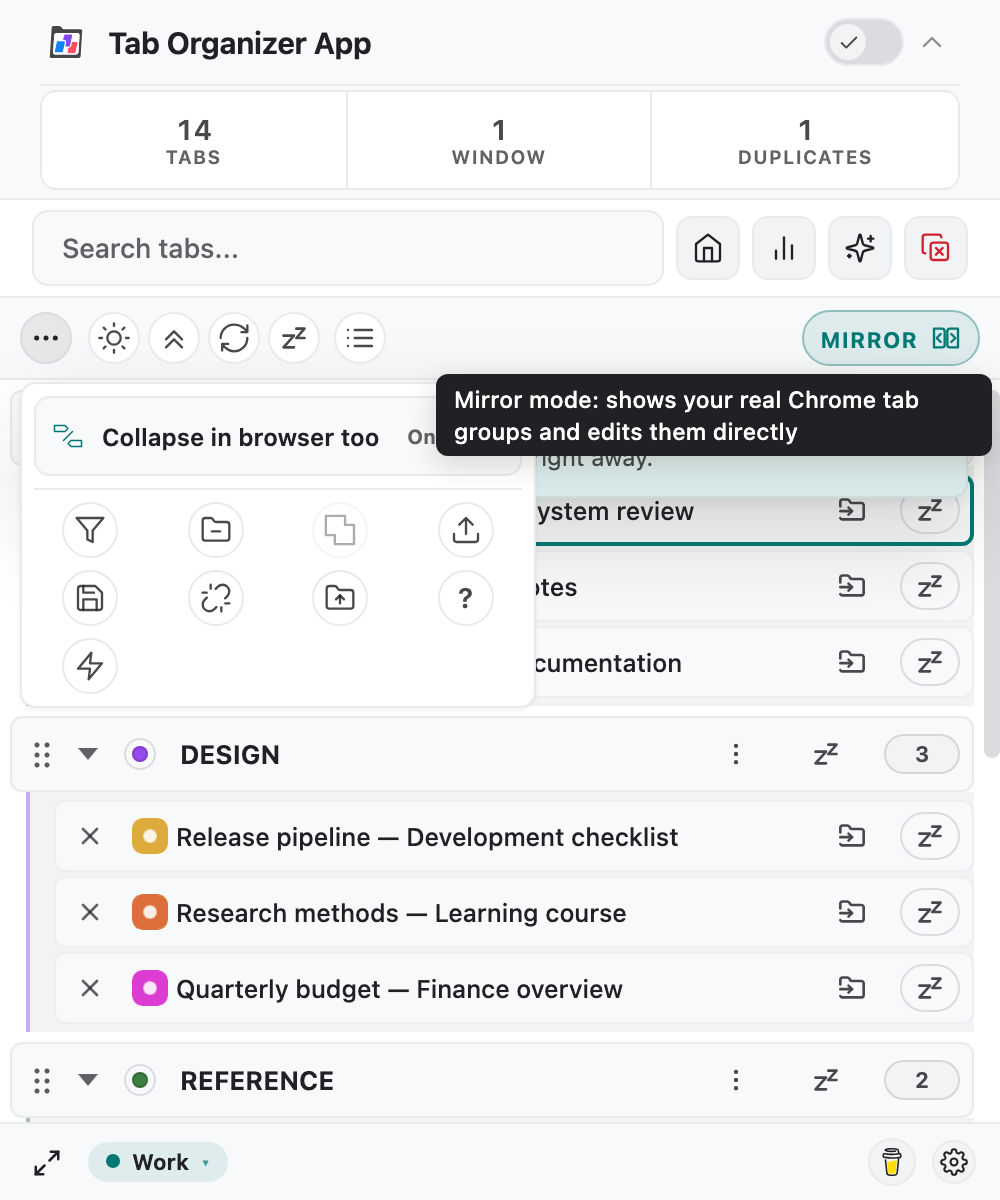
That switch is not a pin-able action. It only appears in the Mirror-context panel:
- On — collapse and expand in Tab Organizer App also affect Chrome's native groups.
- Off — collapse state stays in Tab Organizer App.
Turn Mirror off and the switch hides again. See Group Mirror Mode.
Defaults and limits
- Six on-screen slots; empty slots are valid.
- Drag-and-drop and Pin to toolbar / Remove from toolbar write the same stored layout.
- Existing storage is never replaced by the default seed.
- Destructive catalog actions still ask for confirmation after you pin them. Only Fast Mode turns confirmations off.