
Guides
Search and keyboard shortcuts
Find tabs across the displayed windows, move through results, and configure Tab Organizer App keyboard commands.
Use the popup search when you know part of a tab's title or URL. Results can include tabs from more than one Chrome window, subject to the active window and group filters.
Search tabs
- Open Tab Organizer App from the toolbar, or press ⌥+O on Mac and Alt+O on Windows/Linux.
- Place focus in Search tabs... and type a title, domain, or URL fragment.
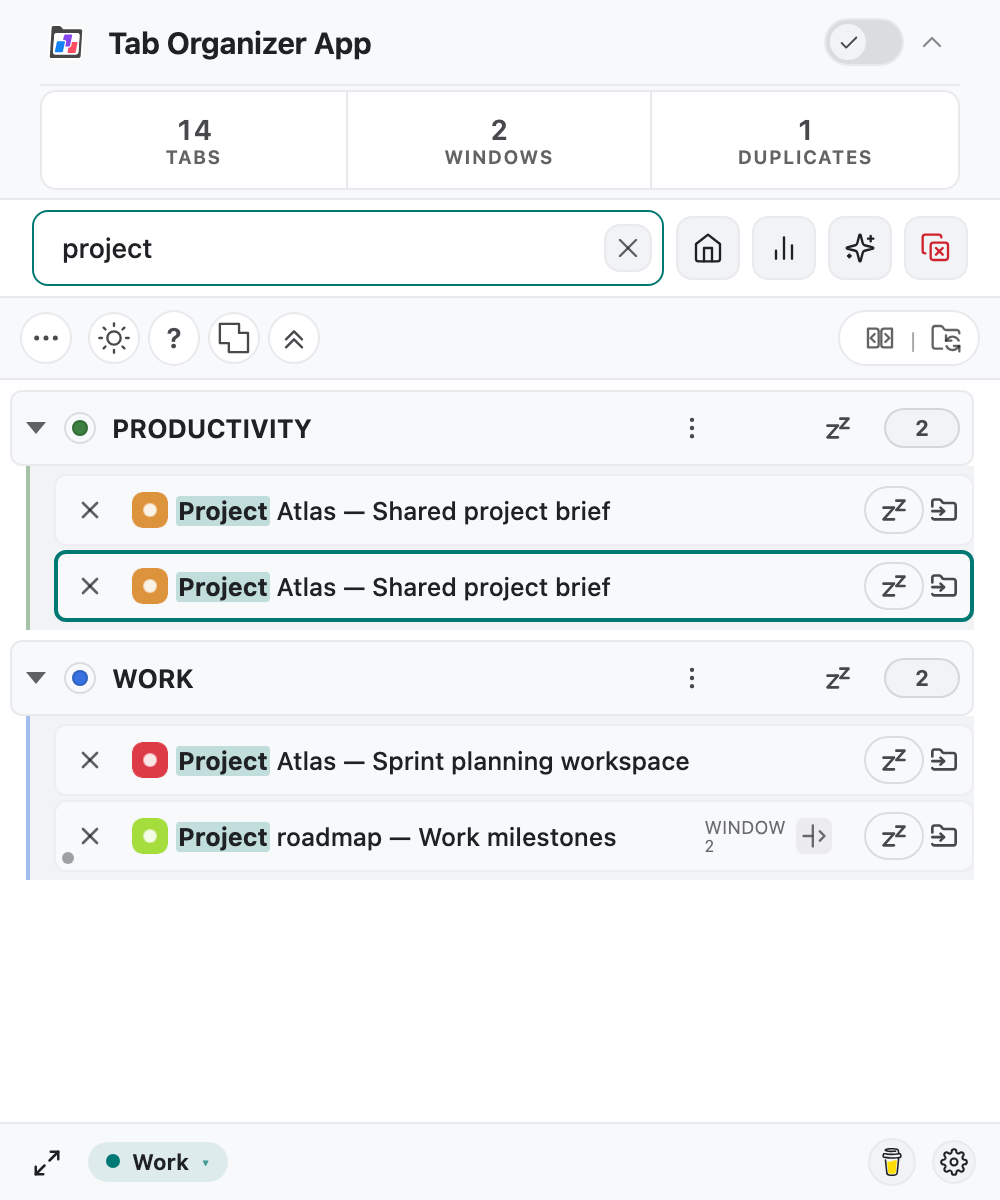
- If expected results are missing, clear any group or window filter.
- Select a result to activate its tab. Chrome also focuses the correct window when the result belongs elsewhere.
- Use Clear search or press
Escapeonce to remove the query.
Escape first closes whatever is open: a menu, a dialog, or an input field. After that it clears a Mirror selection or a non-empty query. Only when none of these applies does it close Tab Organizer App itself, that is, the popup, the side panel, or the dedicated window. The search field is disabled in Statistics. Search filters the tabs currently displayed by the extension; it is not a search of closed tabs or full browsing history.
Move through results
With a query entered:
- press
ArrowDownto move to the next result; - press
ArrowUpto move to the previous result; - press
Enterto activate the highlighted result, or the first result when none is highlighted; and - press
Escapeto clear the query.
The Chrome command ⌥+⇧+A on Mac or Alt+Shift+A on Windows/Linux activates the first search result. Check the highlighted title before pressing it when several tabs have similar names.
Keyboard shortcuts
This version defines 11 shortcuts: four Chrome commands and seven controls for the open extension interface. Mac defaults appear first, followed by Windows/Linux. Chrome commands can be reassigned at chrome://extensions/shortcuts; popup controls cannot.
| Action | Mac | Windows/Linux | Scope |
|---|---|---|---|
| Open Tab Organizer App | ⌥+O | Alt+O | Chrome command; opens the host you chose: popup, side panel, or dedicated window. |
| Activate first search result | ⌥+⇧+A | Alt+Shift+A | Chrome command; assignment can be changed in Chrome's extension shortcuts. |
| Close all tabs except active, pinned and playing | ⌥+⇧+K | Alt+Shift+K | Chrome command; assignment can be changed in Chrome's extension shortcuts. |
| Collapse all groups except the active one | ⌥+⇧+C | Alt+Shift+C | Chrome command; assignment can be changed in Chrome's extension shortcuts. |
| Cycle to next context profile | ⌥+⇧+P | Alt+Shift+P | Extension UI; works while the popup, side panel, or dedicated window is open. |
| Focus search | / | / | Extension UI; works while the popup, side panel, or dedicated window is open. |
| Show keyboard shortcut help | ? | ? | Extension UI; works while the popup, side panel, or dedicated window is open. |
| Highlight search results | ↑ / ↓ | ↑ / ↓ | Extension UI; works while the popup, side panel, or dedicated window is open. |
| Activate highlighted tab | Enter | Enter | Extension UI; works while the popup, side panel, or dedicated window is open. |
| Clear search or close popup | Esc | Esc | Extension UI; works while the popup, side panel, or dedicated window is open. |
| Move from search to first tab | Tab | Tab | Extension UI; works while the popup, side panel, or dedicated window is open. |
Shortcut conflicts
Chrome can leave a command unassigned or change whether it works globally when another extension or the operating system claims the same key combination.
- Enter
chrome://extensions/shortcutsin Chrome's address bar. - Find Tab Organizer App.
- Check whether each command has a shortcut and whether Chrome reports a conflict.
- Assign an available combination if needed.
- Return to a normal browser window and test the command.
Shortcut assignments are managed by Chrome. Reinstalling the extension should not be your first troubleshooting step because it can discard extension state.